Tampilkan postingan dengan label jailbreak. Tampilkan semua postingan
Selasa, 27 Desember 2011

How to Perform an Untethered Jailbreak of Your iPhone 4 (Mac) [5.0.1]

These are instructions on how to perform an untethered jailbreak of your iPhone 4 on 5.0.1 using RedSn0w for Mac.

This procedure will cause you to upgrade your baseband potentially ruining your chances for an unlock. Please follow a tutorial on how to update to iOS 5.0.1 using a custom ipsw if you need an unlock.


Step One
Create a folder on your desktop called Pwnage

Download the latest RedSn0w from here and place it in the Pwnage folder. Likewise, download the 5.0.1 firmware from here and place it in the Pwnage folder. (Note: you do not need to download the 5.0.1 firmware if you are already on iOS 5.0.1)

Extract the RedSn0w zip file by double clicking it.

 
Step Two: (You can skip this step if iOS 5.0.1 is already installed on your device)
Connect your iPhone to the computer and launch iTunes. 


Select your iPhone from the list of devices on the left. Now hold down Option and click the Restore button. Restore is preferred as it won't create any wasted space on your iPhone.


 Navigate to the Pwnage folder on your desktop and select the 5.0.1 firmware ipsw. Click the Choose button to continue. 
 iTunes will now update your iPhone to the new firmware.

Step Three
Launch the redsn0w application from the redsn0w folder we extracted earlier.

Step Four
Once RedSn0w opens click the Jailbreak button


Step Five
Plug your iPhone into the computer and make sure its OFF then click the Next button

Step Six
RedSn0w will now guide you through the steps to get into DFU mode.

Hold down both the Home button and the Power button for 10 seconds.
Release the Power button and continue holding the Home button until RedSn0w detects the device.

Step Seven
Your iPhone will now reboot


 Step Eight
RedSn0w will now prepare the jailbreak data.

Step Nine
Select Cydia from the list of options and click Next.

Step Ten
Your iPhone will now be rebooted again and RedSn0w will begin uploading the new RAM Disk and Kernel.


Step Eleven
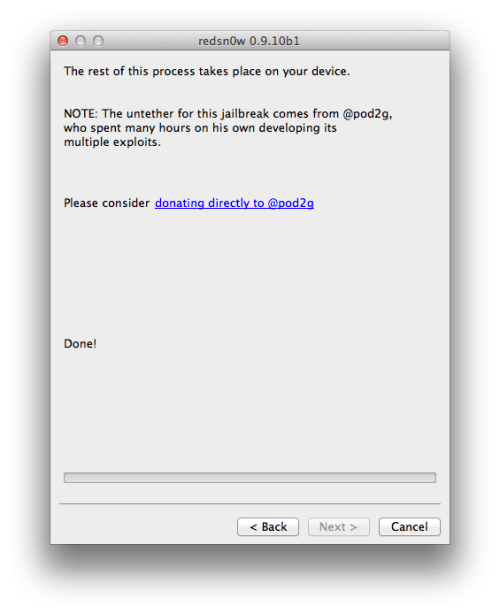
Once this is complete you will be notified that RedSn0w is done. When your iPhone finishes rebooting (5 minutes or so) it will be jailbroken with Cydia on the SpringBoard.


*As usual a big thanks to the iPhone Dev-Team, pod2g, and Geohot for their hard work and contribution to the iPhone community.


Senin, 07 November 2011

AppLocker : Password Protect Your iPhone applications (Cydia iOS 5)

iOS 5 is jailbroken since it’s availability, but still many popular cydia tweaks aren’t optimized for iOS 5. LockDown Pro and Locktopus, two very famous iPhone App password protection tweaks aren’t supported to iOS 5 till the date. A few days ago a new Cydia tweak popped up, providing the same functionality as LockDown pro and Locktopus.


AppLocker is the solution with you can block applications with a password. Just go to Settings on your iPhone, select which applications you want to block and choose a password. It is important that you block the Settings application and that failure can come and unlock applications easily. You can download AppLocker for $ 0.99 in Cydia on ModMyi repo. Check the video after the break.


Sabtu, 05 November 2011

Sn0wBreeze Updated to Jailbreak iOS 5.0.1

Thе рοрυƖаr jailbreaking tool fοr Windows Sn0wBreeze, hаѕ bееn updated today tο add support fοr iOS 5.0.1 Beta fοr Developers. Thіѕ update аƖѕο fixes thе iBooks sandbox аnԁ Location Services issue wіth thе iPhone 3GS.

Thе jailbreak, аѕ уου mіɡht expect, іѕ limited tο tethered boot, whісh means, іf уουr iOS device losing power completely, οr іf іt requires a restart (fοr ѕοmе reason), уου wіƖƖ hаνе tο connect іt tο уουr Windows tο boot іt back іntο thе jailbroken state, еνеrу time.
Keep іn mind thаt thе current version οf iOS 5.0.1 іѕ meant fοr developers οnƖу аt thе moment, wіth a public release tο follow soon іn thе coming weeks. Thіѕ release οf iOS 5.0.1; enables multitasking gestures fοr thе original iPad, improves battery life significantly over thе final version οf iOS 5 аnԁ contains οthеr numerous bug fixes.
Thе complete change-log fοr thе nеw аnԁ updated Sn0wbreeze 2.8 beta 9 fοr jailbreaking iOS 5.0.1 іѕ аѕ follows:

sn0wbreeze v2.8 [BETA 9]:
- Supports iOS 5.0 (9A334)/5.0.1-b1 (9A402)
- Fixed iBooks sandbox crashing issues.
- Fixed location services issues wіth iPhone 3GS
users running thе iPad baseband.
- Re-added iPad baseband install option tο iPhone 3GS.
- Removes UDID requirement/Beta timer іn 5.0.1.
- Tethered devices аrе booted via iBooty whісh іѕ
extracted tο thе Desktop аftеr running sn0wbreeze.
- Supports untethered jailbreak οn iPhone 3GS (οƖԁ bootrom)
iPhone 3GS iPad baseband (06.15.00) users:
- Re-flash thе iPad baseband via sn0wbreeze
іf уου restore(d) tο a stock 5.0 firmware.
Download Sn0wbreeze 2.8b9 fοr Windows.


Minggu, 11 September 2011

Jailbreak iOS 5 On iPhone 4, 3GS, iPad, iPod touch Using Redsn0w


Things to remember:
  • This will not work with iPad 2, or the iPhone 4S.
  • This is a tethered jailbreak, meaning that it will require you to connect the phone to a computer running Redsn0w whenever you power up the phone.
  • As has been the case before, by pursuing the tethered route, if and when an untethered jailbreak does surface, the chances are you’ll have to restore in order to utilize it.
With that out of the way, let’s get started!

Step 1: Download and install the new iTunes 10.5 on your Windows PC or Mac. Connect your iOS device with your computer and make sure you make a backup of everything.
NOTE: Those of you who rely on Gevey SIM or Ultrasn0w unlock should skip to “For Unlockers Only” section found at the bottom.
Step 2: Now upgrade your iOS device to the final version of iOS 5 using iTunes 10.5 on your Windows PC or Mac. Download links for final version of iOS 5 can be found here.
Step 3: Download the new Redsn0w 0.9.9b5 for Mac or 0.9.9b4 for Windows here.


Step 4: Click on the “Jailbreak” option, select “Install Cydia” and follow the onscreen instructions to enter DFU mode. Once you’re in DFU mode, Redsn0w will perform the jailbreak (without having to have you select the IPSW file manually! YES, the new Redsn0w can fetch all the required files automatically from Apple’s servers).

Booting into Tethered-Jailbreak Mode:
Step 4:
Once you’ve installed Cydia, you will need to boot the device into a tethered jailbroken state. Go into DFU mode, and then in “Extras”, opt for “Just Boot”. Redsn0w will subsequently boot your device as tethered. Note: Due to the nature of this jailbreak, you will have to repeat this booting sequence every time you wish to reboot your device.


For Unlockers Only:
If you rely on a Gevey SIM or Ultrasn0w (for old basebands only) unlock, DO NOT update to the stock firmware update offered by iTunes. Instead, use this latest version of Redsn0w to cook a custom firmware file without the upgraded baseband so that you can unlock it with Ultrasn0w or Gevey SIM. To do this, click on “Extras” option and then select “Custom IPSW” option. Select the required iOS 5 IPSW firmware file, and let Redsn0w make the custom firmware for you. Once done, enter Pwned DFU mode by selecting “Pwned DFU” from Redsn0w’s Extras option, and then restore to this custom firmware using iTunes. Once done, unlock your iPhone using Gevey SIM, or the updated Ultrasn0w.
Sabtu, 10 September 2011

How to fix Cydia Repo Errors : Using your iDevice or computer

Having problems with Cydia? Have a down or corrupt Source(s) that’s giving you errors? Well than you’ve come to the right place.
Below is the tutorial on how to get rid of these source(s) & prevent errors on Cydia start up.

Using your iDevice:
You should have iFile installed from Cydia to perform the tutorial on your iDevice.
1. Open Cydia and read the error. Look for the source(s) causing the problem. Remember them or write them down as you’re going to have to recognize them later.
2. Open iFile and and navigate to /etc/apt/sources.list.d/. Search for Cydia.list.


2. Open and edit the file. You will see a list like this:


4. Now look for the source(s) that showed error at Cydia start up & delete it from the Cydia.list file and save it.
E.g. If “http//:sinfuliphonerepo.com/” was the problem like it is in the first picture above, you would delete:
deb “http://sinfuliphonerepo.com/” from the list.
5. Reopen Cydia and it should work like a charm.


On your computer:
You will need to have a SSH program installed on your computer,Winscp or PuTTY for Windows & Cyberduck or Transmit for Mac, and SSH installed on your iDevice off Cydia.
1. Open Cydia and read the error. Look for the source(s) causing the problem. Remember them or write them down as you’re going to have to recognize them later.
2. SSH into your iDevice using one of the FTP clients mentioned above.
3.Navigate to /etc/apt/sources.list.d
4. Look for the Cydia.lsit file. Open and edit it in a text editing program e.g. Notepad on Windows.
5. Now find the source(s) that caused problem at Cydia start up and delete it.
E.g. If “http//:sinfuliphonerepo.com/” was the problem like it is in the first picture above, you would delete:
deb “http://sinfuliphonerepo.com/” from the list.
6. Reopen Cydia and enjoy the error free environment.
Senin, 05 September 2011

Mengatasi Cydia dan Safari yang bermasalah setelah jailbreak dengan Redsn0w

Setelah melakukan jailbreak dengan Redsn0w beberapa orang mengeluh kalau Cydia dan Safari di iPad/iPhone mereka tidak berjalan dengan semestinya. Misalnya, waktu ikon Safari diklik yang seharusnya langsung terbuka malah kembali lagi ke homescreen, begitu juga dengan Cydia. Sebenarnya itu adalah hal yang wajar dan normal kalau jailbreak tethered menggunakan redsn0w.

Yang harus Anda lakukan adalah melakukan jailbreak ulang, plus menambahkan satu opsi pada Redsn0w.
Cara lengkapnya:
  1. Hubungkan iDevice dengan komputer
  2. Jalankan redSn0w seperti jailbreak idevice pertama kali
  3. Pilih opsi Install Cydia dan Just boot tethered right now kemudian klik Next dan lanjutkan proses jailbreak menggunakan redsn0w sampai selesai.


Setelah iDevice selesai reboot, coba cek kembali apakah Cydia dan Safari sudah berjalan dengan normal.
 
© Copyright 2010-2011 yeah All Rights Reserved.
Template Design by Herdiansyah Hamzah | Published by Borneo Templates | Powered by Blogger.com.